

In SupportWire, you can index your existing documentation to provide the Support Assistant with a "Source of Truth." This allows the AI to provide instant, accurate answers even when your team is offline.
You can add knowledge using two source types:
URL: Automatically crawls and indexes a website or help center.
Library: A collection where you can manually upload documents (e.g., PDFs).
1. Adding a New Knowledge Store
To get started, follow these steps to link your content:
Log in to your SupportWire dashboard.
Click on Settings in the sidebar.
Select Knowledge Store from the menu.
Click the Add Store button.
Enter a Title (for internal reference) and the URL of your knowledge base or a specific webpage.
Click Create.
Your content is now being indexed and will be used by the assistant to answer customer queries automatically.
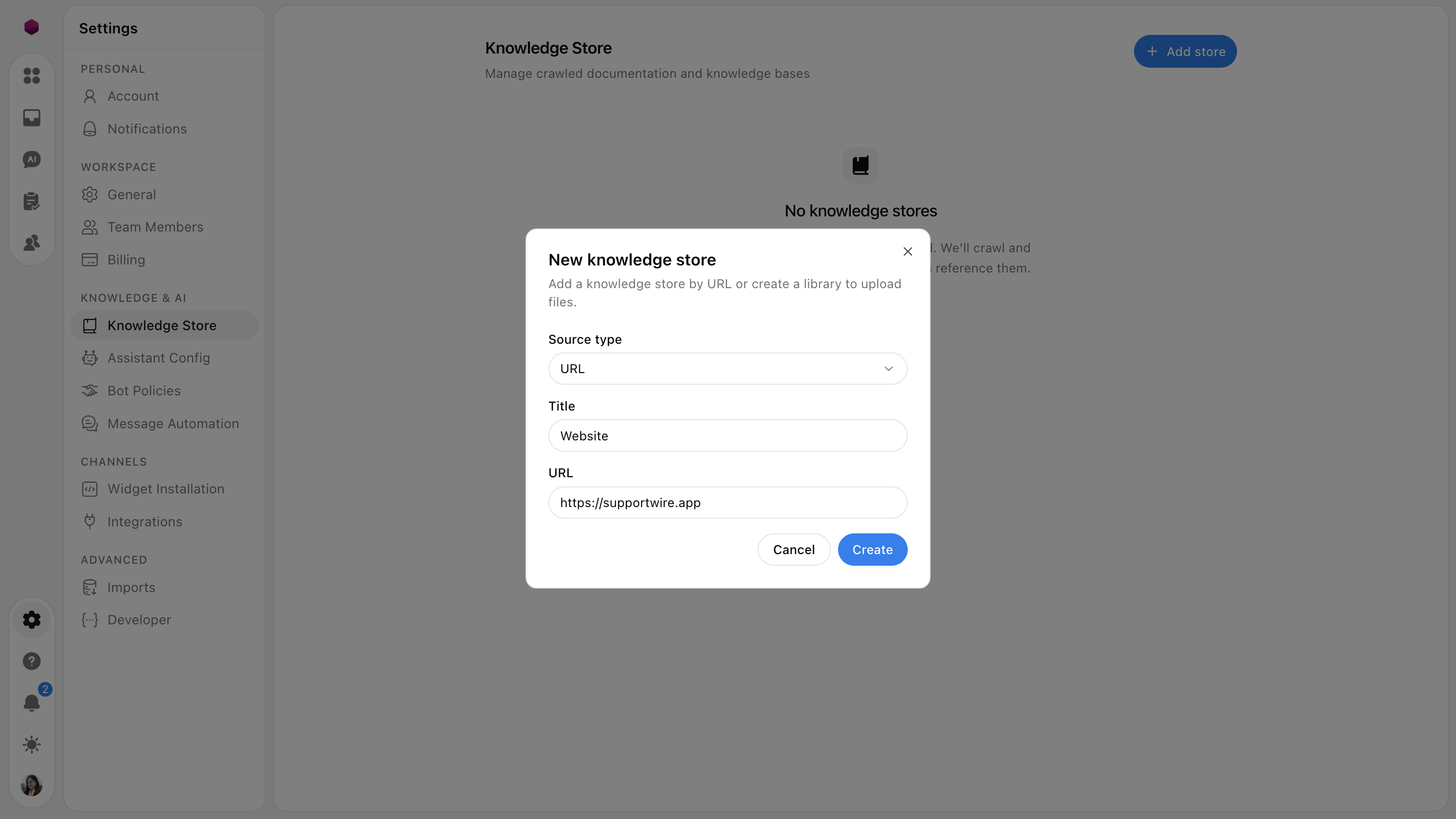
Case A: URL (Web Crawling)
Use this if your documentation is already hosted on a website or help center.
Select Source Type: Choose URL from the dropdown.
Give it a Title: Enter an internal name (e.g., "Main Help Center").
Enter URL: Paste the link to the base page you want SupportWire to crawl.
Create: Click Create to start the indexing process.
Case B: Library (Document Upload)
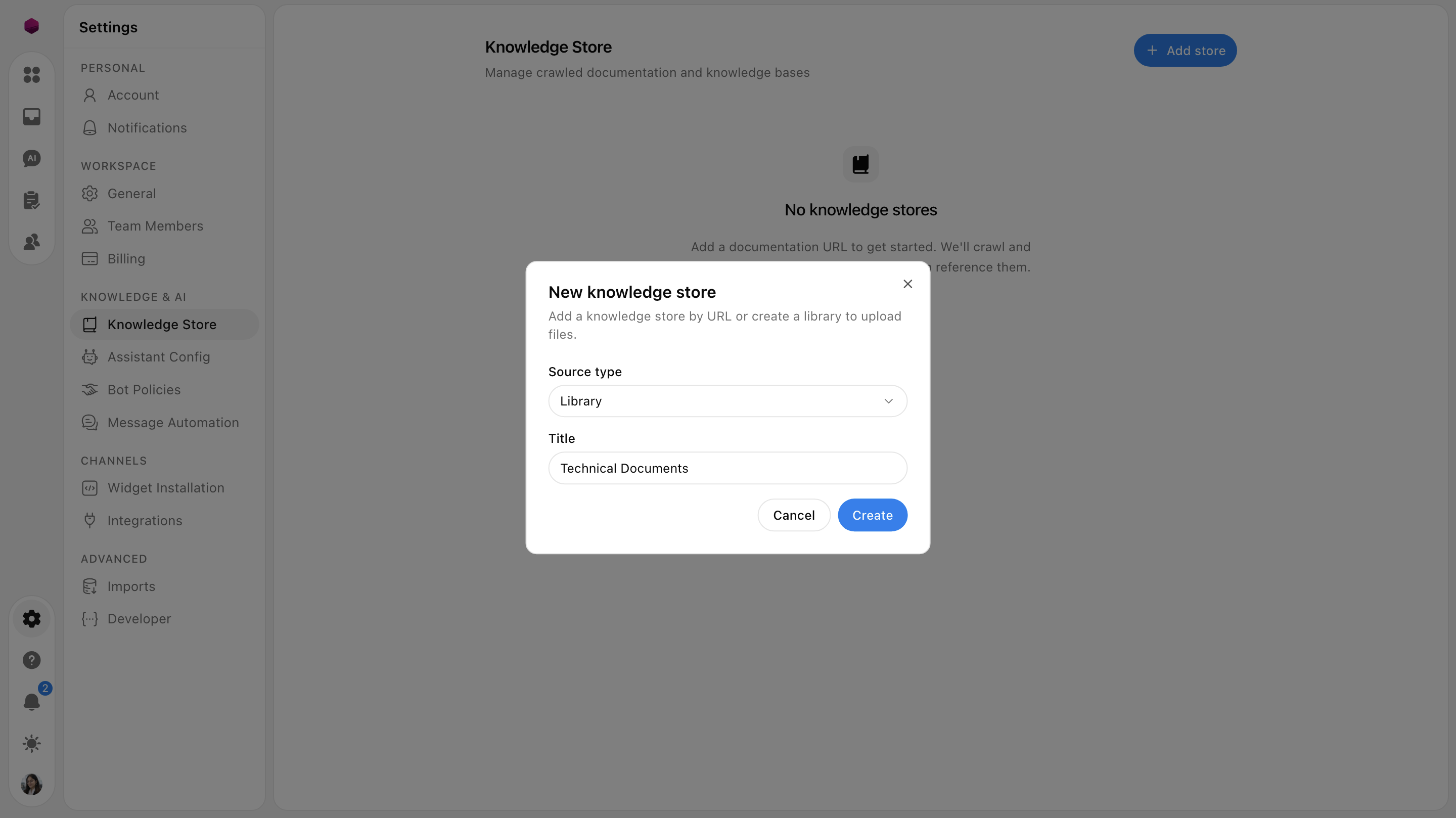
Use this for internal PDFs, manuals, or documents not available via a public URL.
Select Source Type: Choose Library from the dropdown.
Name the Collection: Give your library a clear name (e.g., "Technical Documents").
Create: Click Create to initialize the collection.
Adding the Documents: After the collection is created, click on the library name to go inside. From there, click Add file to upload and index your documents (currently supporting PDFs only).
2. Managing Your Sources
Once your URL or Library is set up, you have the same management tools for both:
Active Toggle: Use the switch to turn a specific URL or document On or Off. If toggled off, the AI will ignore that specific source when answering questions.
Search: Use the search bar to quickly find a specific link or document within a large collection.
3. Removing a Knowledge Store
If you want to completely remove a source:
Locate the specific URL or library you wish to remove.
Click on the Delete option associated with that entry.
Confirm the deletion to clear that data from the assistant's memory.
4. Why Use Both?
URL: Perfect for dynamic content that changes often (like a live Help Center).
Library: Ideal for static, high-value information like technical specifications, compliance docs, or whitepapers that aren't hosted on your website.
Need more help?
Reach out to our support at [email protected] or submit a request on our support board! 😃
Was this helpful?
Comments
You must be logged in to comment in this article.
Login to comment