

The Inbox is your central hub for all customer communications. Designed for both solo support and large teams, it ensures every conversation is tracked, assigned, and resolved efficiently.
What You'll Find in the Inbox
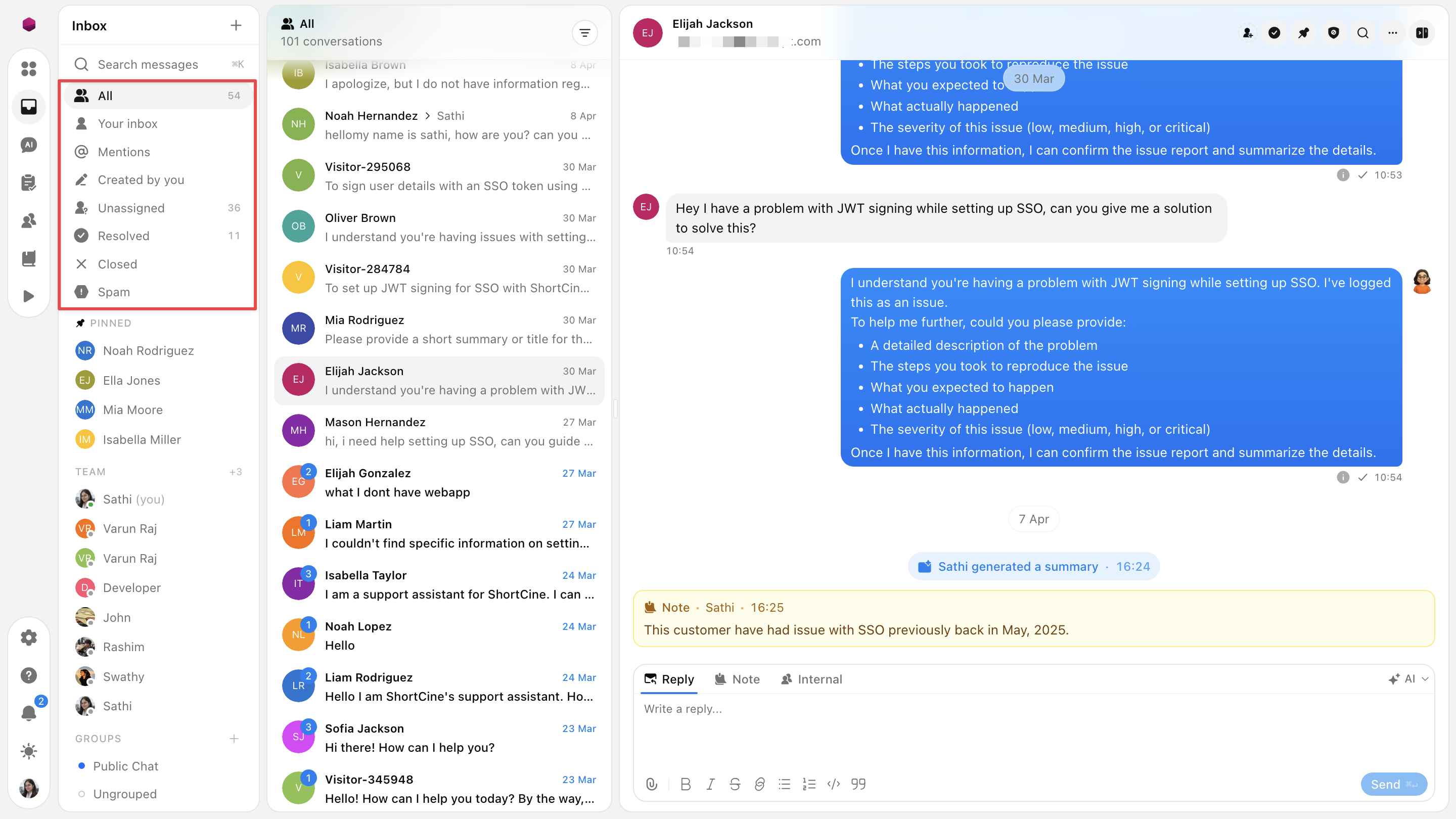
When you open the Inbox, you'll see several views that filter conversations based on ownership and status:
All : Every conversation in your workspace, regardless of who it's assigned to or what state it's in. A good starting point for understanding overall volume.
Your inbox : Conversations assigned specifically to you. The number badge shows exactly how many are waiting. This is where most of your day-to-day work happens.
Mentions : Conversations where a teammate has mentioned you directly. Useful for getting looped in without being the primary owner.
Created by you : Conversations you opened or initiated, making it easy to track and follow up on outbound threads.
Unassigned : Conversations that haven't been picked up by anyone yet. Keeping this low is one of the best habits for a healthy support queue.
Resolved : Conversations that have been closed out and marked complete.
Closed: Archive for conversations that were ended without a resolution (e.g., spam users).
Spam : Messages flagged as spam, kept separate from your active queue so they don't create noise.
Finding a Specific Conversation
Use the search bar at the top to find any conversation quickly. You can search by customer name, visitor ID, or keywords from the message content. This is especially useful when a customer follows up and you need to pull up their previous thread fast.
Conversation Actions
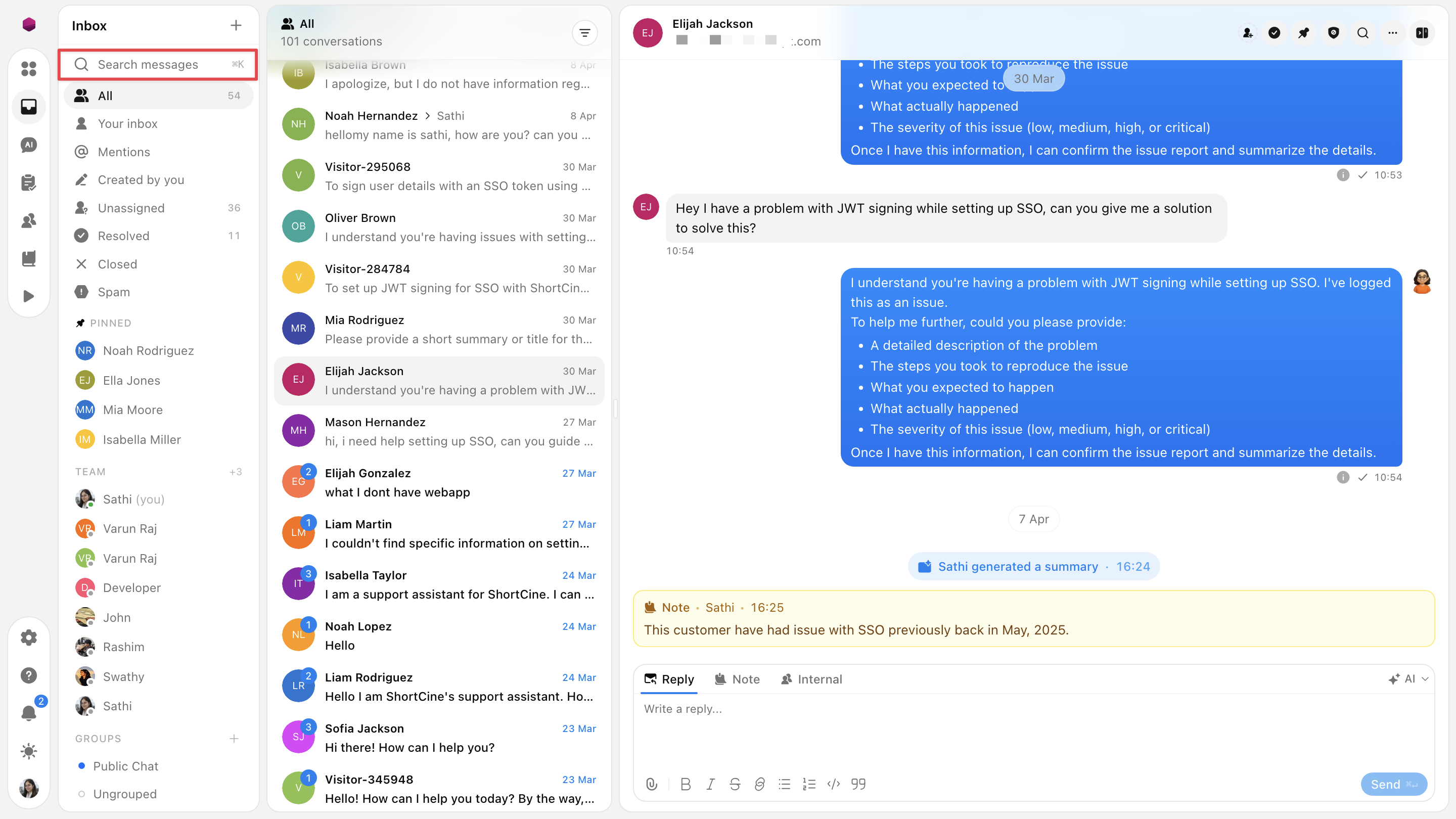
A row of action buttons runs along the top of every open conversation. These let you manage the conversation's status and behaviour without leaving the thread:
Managing Participants: Click the user profile to view all members currently present in the chat thread, where you can use the Add member option within the dropdown to invite additional members(users/ team members) for specialized help.
Close : Closes the conversation without marking it as resolved. Typically used when a conversation ends without a clear outcome, such as when a customer stops responding.
Pin : Pins the conversation so it stays easy to find. Useful for high-priority threads or conversations you need to return to frequently.
Mark as spam : Flags the conversation as spam and moves it to the Spam view, keeping your active queue clean.
Search : Opens an in-conversation search so you can find a specific message or piece of information within a long thread.
Resolve : Marks the conversation as resolved and moves it out of the active queue. Use this once the customer's issue has been fully addressed.
Delete conversation: Permanently removes the conversation from your workspace. Use this with caution, typically for testing or removing highly sensitive information.
View customer profile : Opens the full customer profile with all known details about that contact.
Customer Info Panel
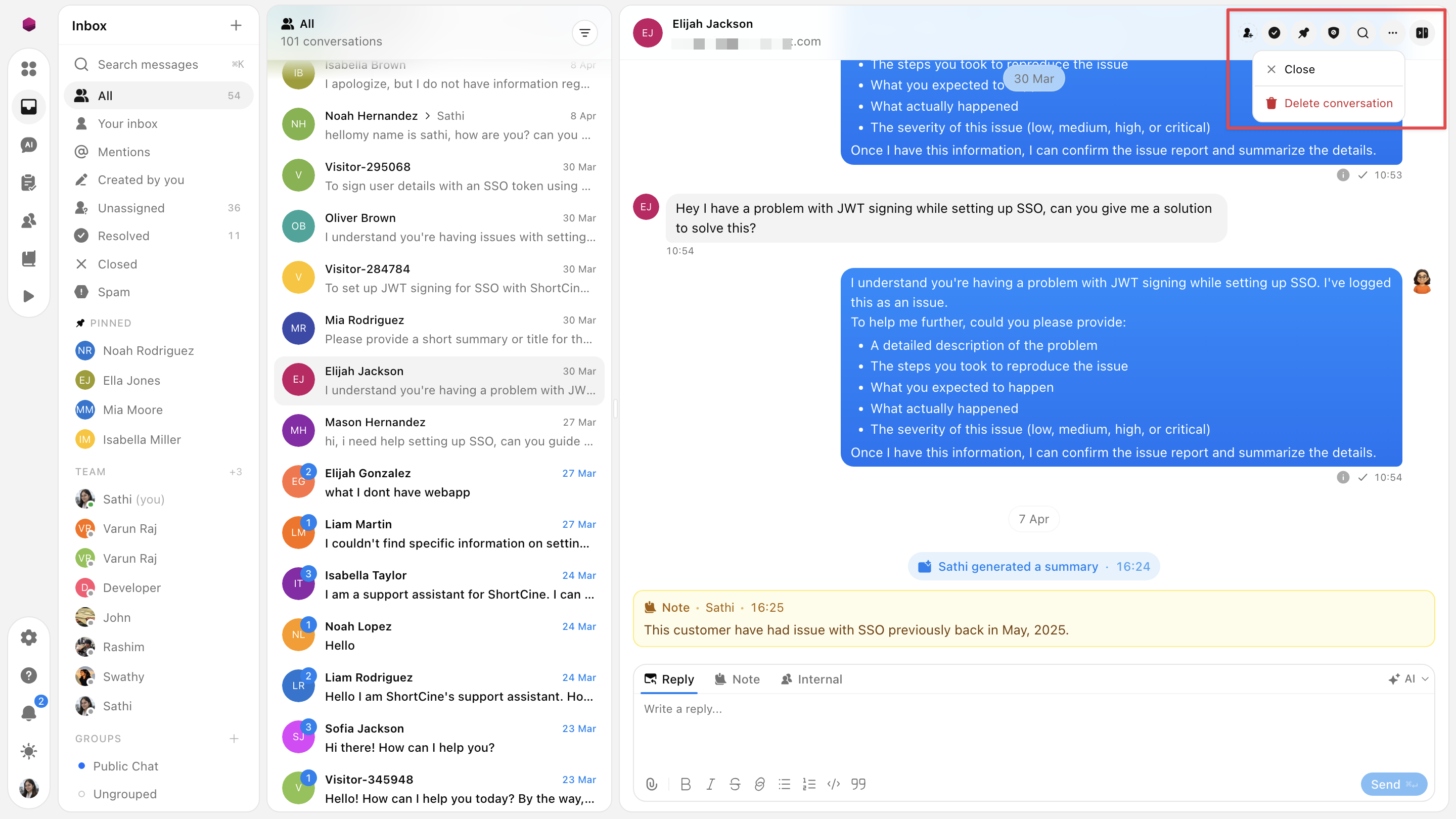
The right-hand panel in the Inbox provides immediate context about who you are speaking with, their technical environment, and a high-level overview of the ongoing issue.
1. User Tab
This is your primary source for contact and technical data. Use it to verify the identity of the customer and identify potential environmental causes for their issue.
Identity & Status: Displays the user’s name, email, and authentication source (e.g., SSO). You can also see if a user is currently blocked.
Assignment: Displays the current agent handling the thread. You can use the Change option or the quick-select avatars to reassign the conversation.
Device & Location: Lists the customer’s browser, operating system, local time, and country.
Other Attributes: Shows custom metadata passed from your product, such as their subscription Plan or Organization ID.
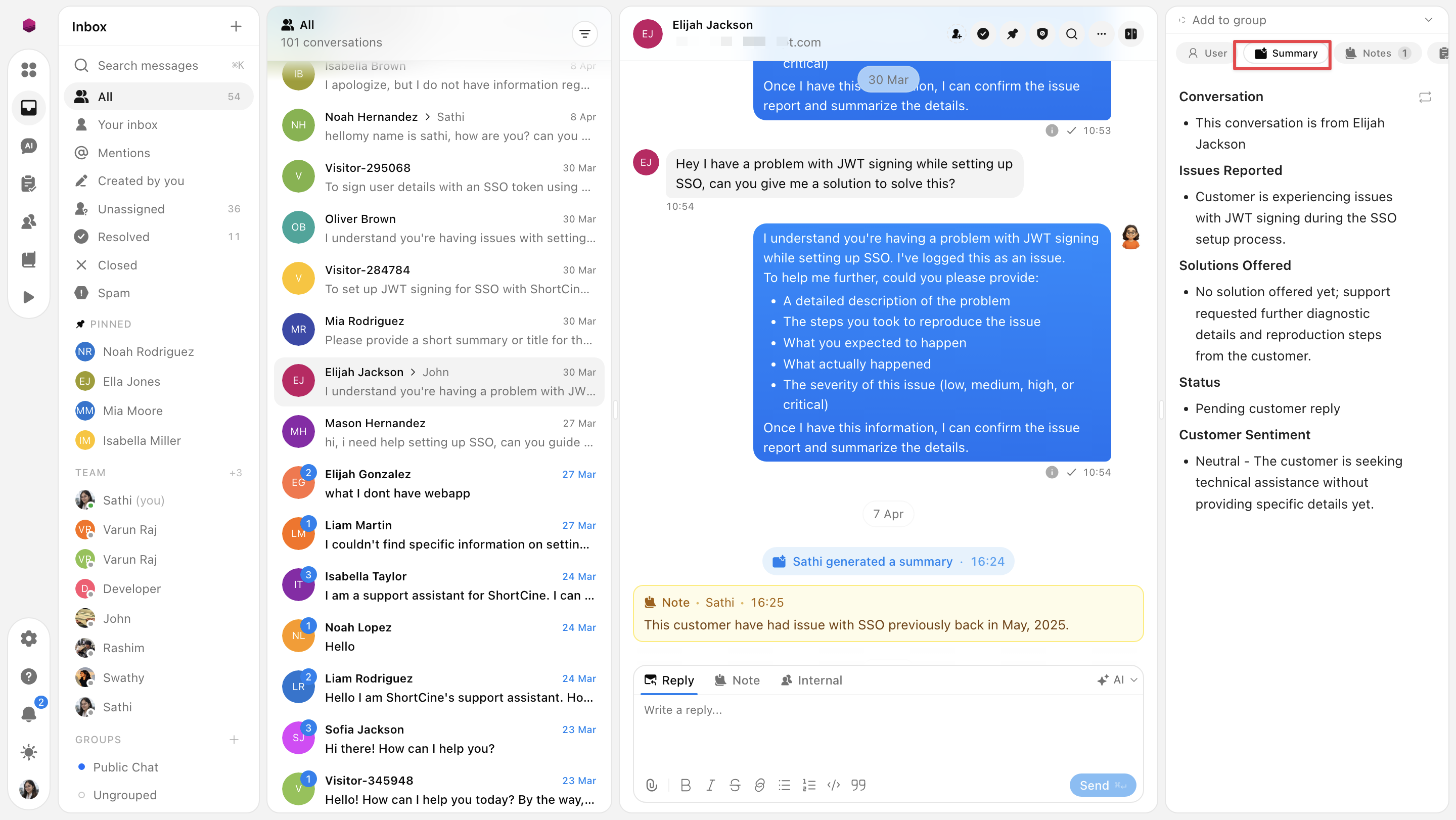
2. Summary Tab
For long or complex threads, the Summary tab provides an AI-generated digest of the conversation history.
Conversation Overview: Briefly identifies the customer and the core reason for the reach-out.
Issues Reported: Highlights specific bugs or problems the customer has mentioned.
Solutions Offered: Tracks what your team has already suggested to avoid repetitive advice.
Status & Sentiment: Gives a quick reading on the current urgency and the customer's emotional tone.
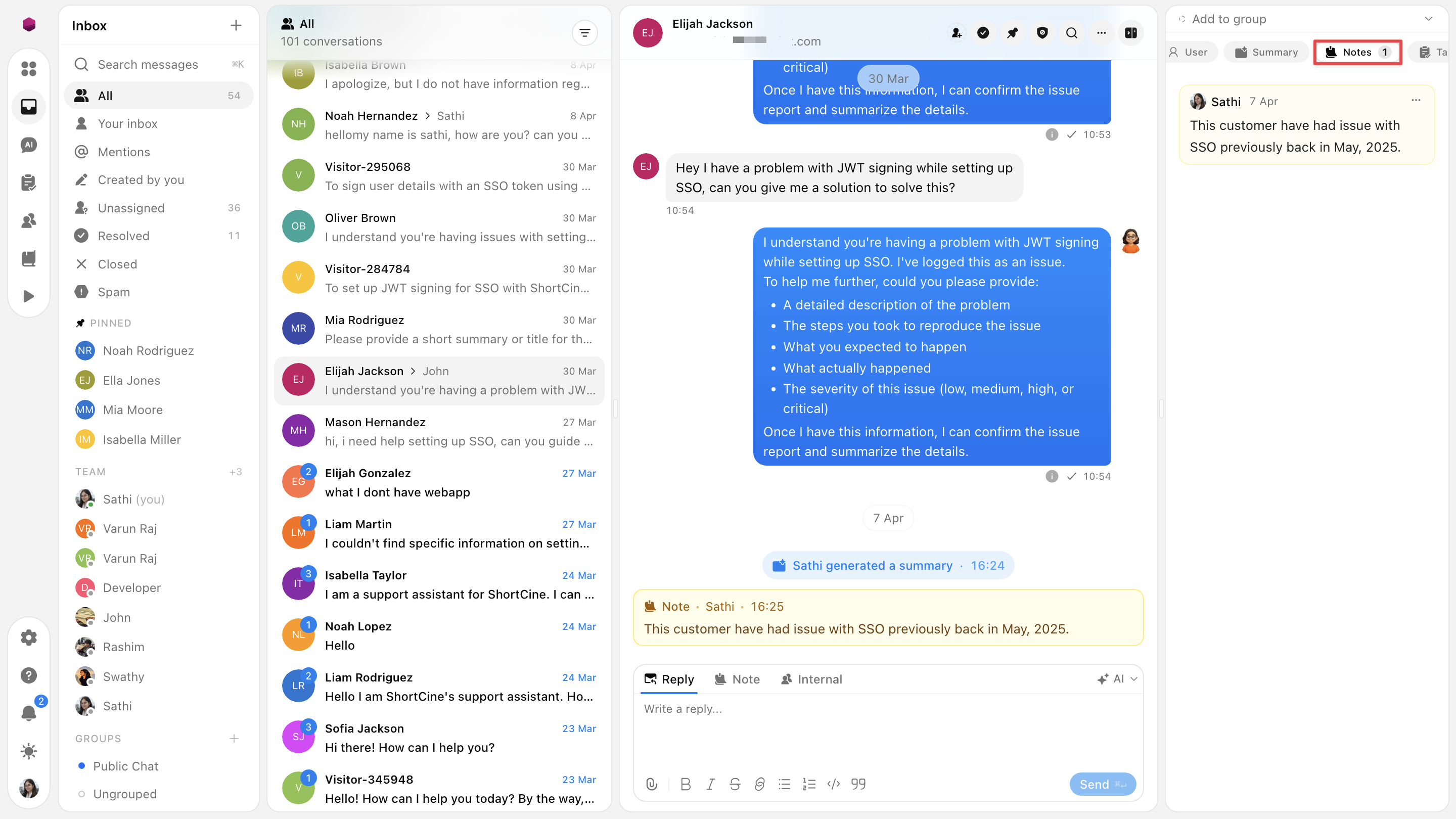
3. Notes Tab
The Notes section acts as a persistent internal scratchpad for the specific customer. Unlike internal messages within the chat, these notes are tied to the user profile and remain visible across different conversations with the same person. Use this for long-term context, such as special handling instructions or historical preferences.
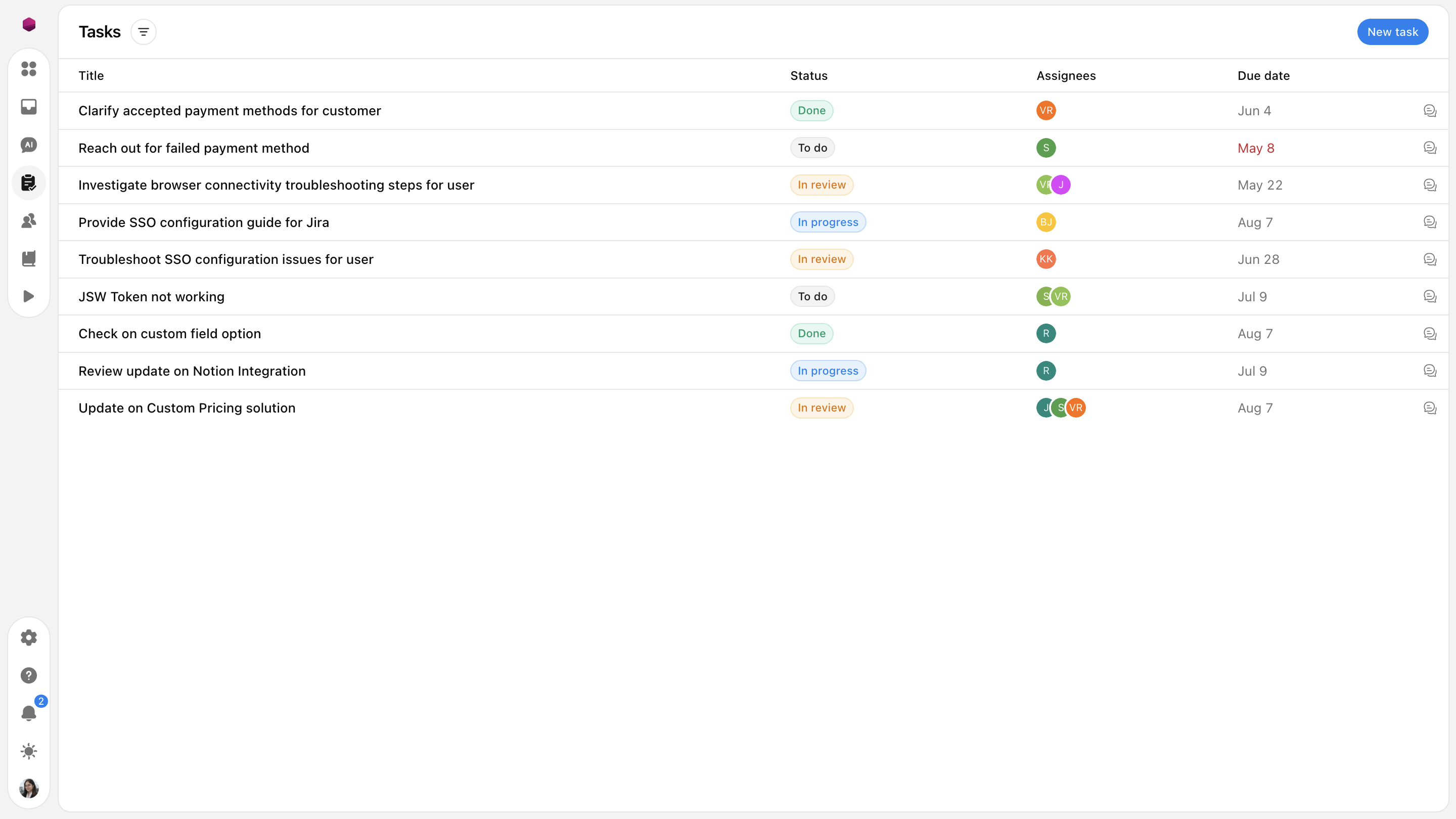
4. Tasks Tab
The Tasks section allows you to create, track, and manage actionable to-do items directly associated with a specific customer conversation. Use this to ensure follow-ups, internal handoffs, or technical fixes are never forgotten.
Create a Task: Click the "Create a task" button within the panel. This opens a form where you must fill out the task details, including a Title (a short name for the task), a Description (specific details or instructions), Assignees (the teammates responsible for the work), Status (the current state, like "To do"), and a Due date deadline. Once completed, click "Create task" to save it.
Check off Progress: This means marking a task as complete once the work is done. Instead of deleting the task, you check it off so it is saved permanently under the customer's profile. This keeps an accurate history of everything your team did to resolve that customer's issues for full transparency.
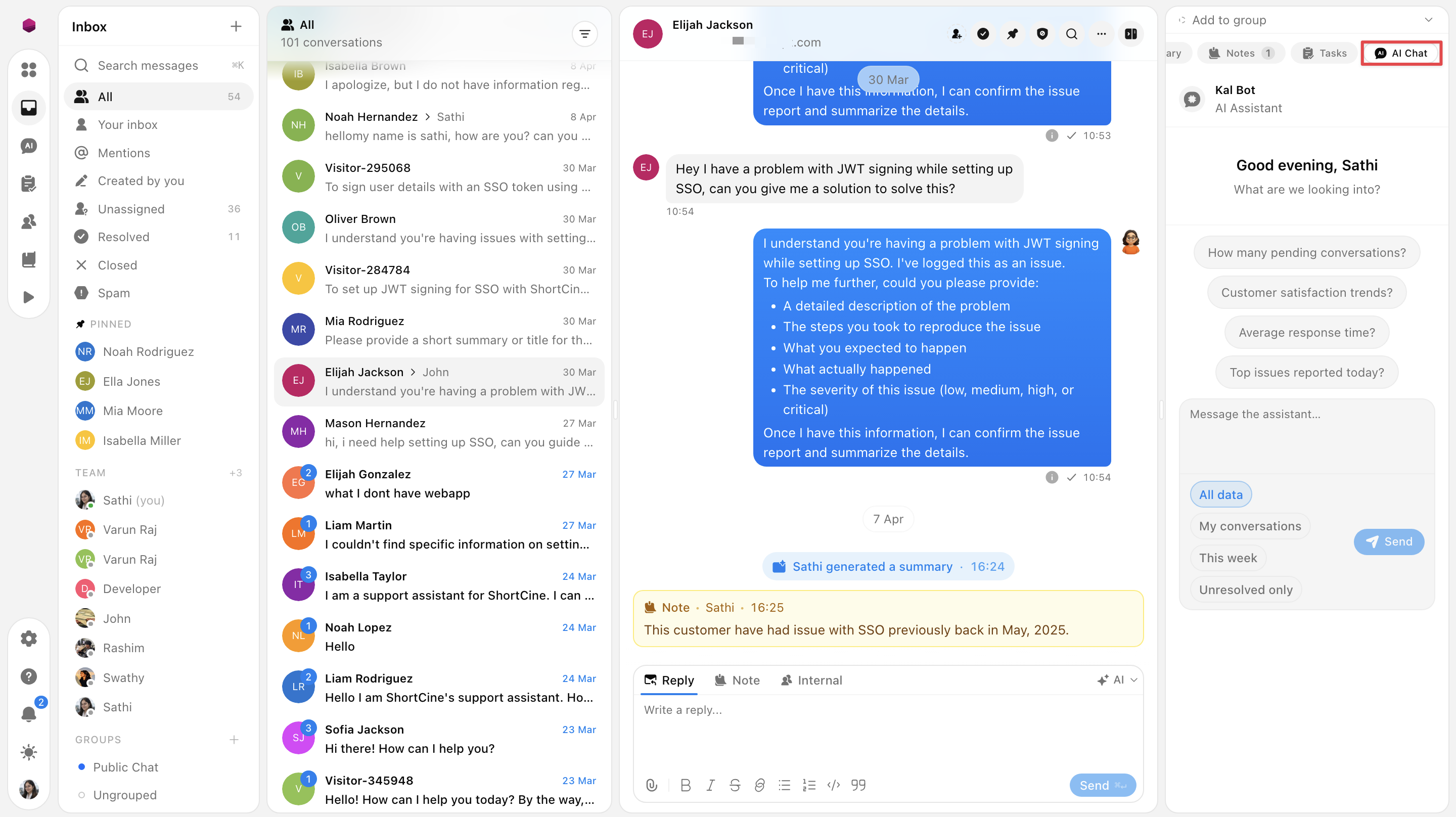
5. AI Chat Tab
The AI Chat provides an interactive assistant to help you draft responses or query the conversation history. Use this tab to ask specific questions about the thread or to generate a professional reply based on the context of the customer's inquiry.
Need more help?
Reach out to our support at [email protected] or submit a request on our support board! 😃
Was this helpful?
Comments
You must be logged in to comment in this article.
Login to comment