

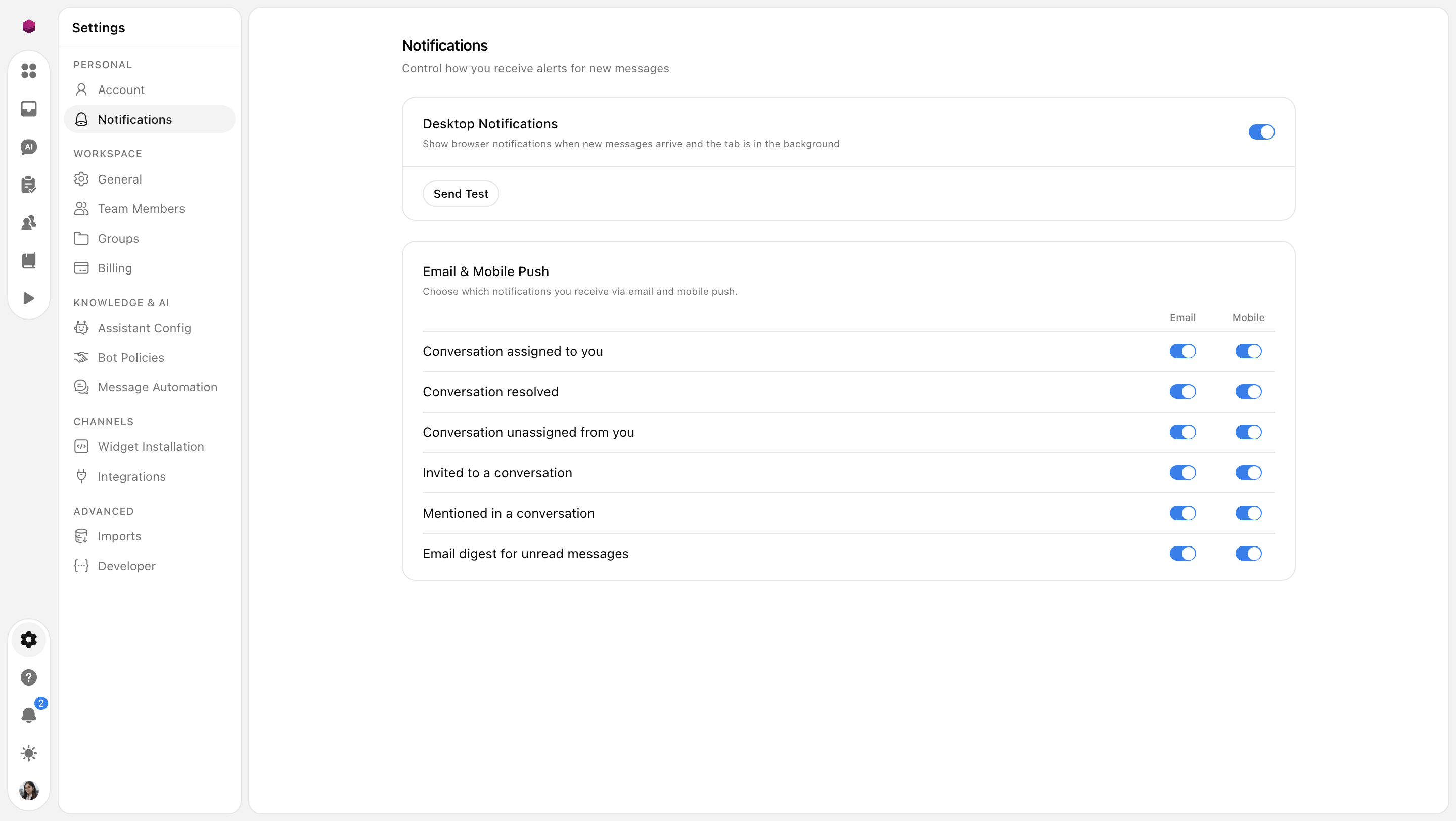
Staying informed is key to providing timely support. The Notifications settings allow you to control exactly how and where you receive alerts for new messages and team activity. By tailoring these settings, you can ensure you never miss a critical conversation while maintaining a focused workflow.
To customize your alerts:
Click the Settings (gear icon) in the bottom-left corner of your dashboard.
Under the Personal section in the sidebar, select Notifications.
Desktop Notifications
Desktop notifications provide immediate visual alerts in your browser, even if the SupportWire tab is in the background.
Enable Desktop Notifications: Toggle this switch to On to see browser-level alerts when a new message arrives.
Send Test: Use this button to verify that your browser and operating system are correctly configured to display alerts from SupportWire.
Email & Mobile Push
This section allows you to fine-tune which events trigger an alert on your mobile device or in your inbox. You can toggle Email and Mobile notifications independently for the following events:
Conversation assigned to you: Get alerted the moment a chat is directed to your queue.
Conversation resolved: Receive confirmation when a teammate or the AI successfully closes a ticket.
Conversation unassigned from you: Stay updated if a conversation is moved to another agent or returned to the general pool.
Invited to a conversation: Know immediately when a teammate needs your expertise on an active chat.
Mentioned in a conversation: Never miss a direct internal note or "tag" from a colleague.
Email digest for unread messages: Receive a periodic summary of any conversations you may have missed while away.
Need more help?
Reach out to our support at [email protected] or submit a request on our support board! 😃
Was this helpful?
Comments
You must be logged in to comment in this article.
Login to comment