

Setting up your knowledge base is the foundation, but how your assistant interacts with your customers is what builds trust. The Assistant Config settings allow you to transform a generic AI into a specialized member of your support team that sounds and acts exactly like your brand.
Bringing Your Assistant to Life
First, navigate to Settings > Assistant Config. This is your control center for the bot’s identity.
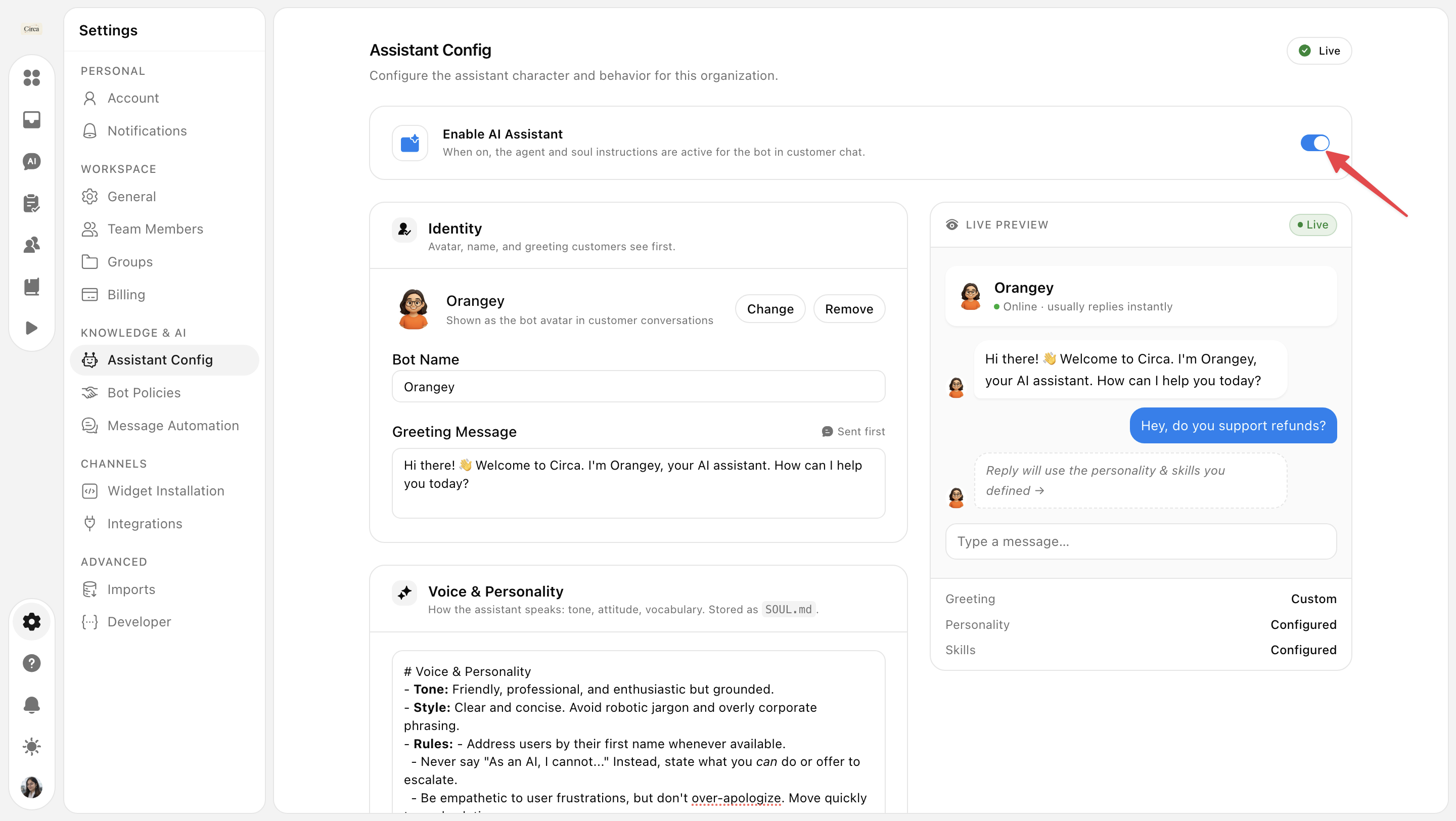
1. Activating the Assistant
At the top of the page, you’ll find the Enable AI Assistant toggle.
Turn it On: To make the assistant live and available to chat with your customers.
Turn it Off: To instantly disable the assistant across your site. You can do this at any time if you want to stop providing automated support.
2. Branding the Bot Profile
Customers are more likely to engage with an assistant that feels approachable.
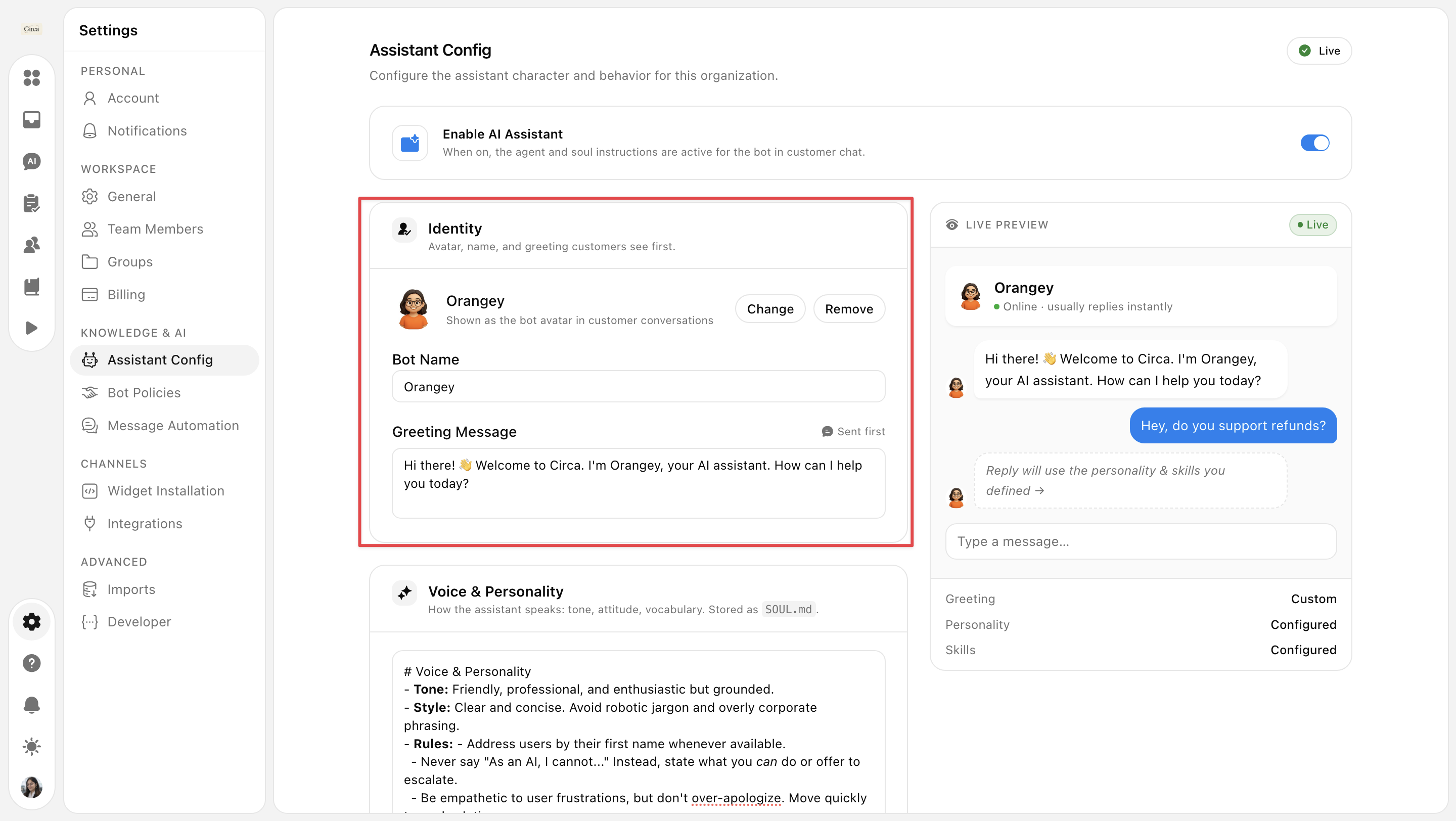
Profile Picture: Upload your company logo or a friendly mascot. A recognizable icon makes the chat feel like an official part of your site.
Bot Name: Choose a name that fits your culture. Some brands prefer "Support Bot," while others go for something more human like "Sam" or creative like "Orangey."
Greeting Message: This is your first impression. Keep it brief and helpful. Example - "Hi! I'm [Bot Name]. What can I help you find today?"
3. Shaping the AI’s Behavior
The most powerful part of the configuration is defining the “Skills & Instructions” and “Voice & Personality”. Think of these as the "Employee Handbook" for your AI.
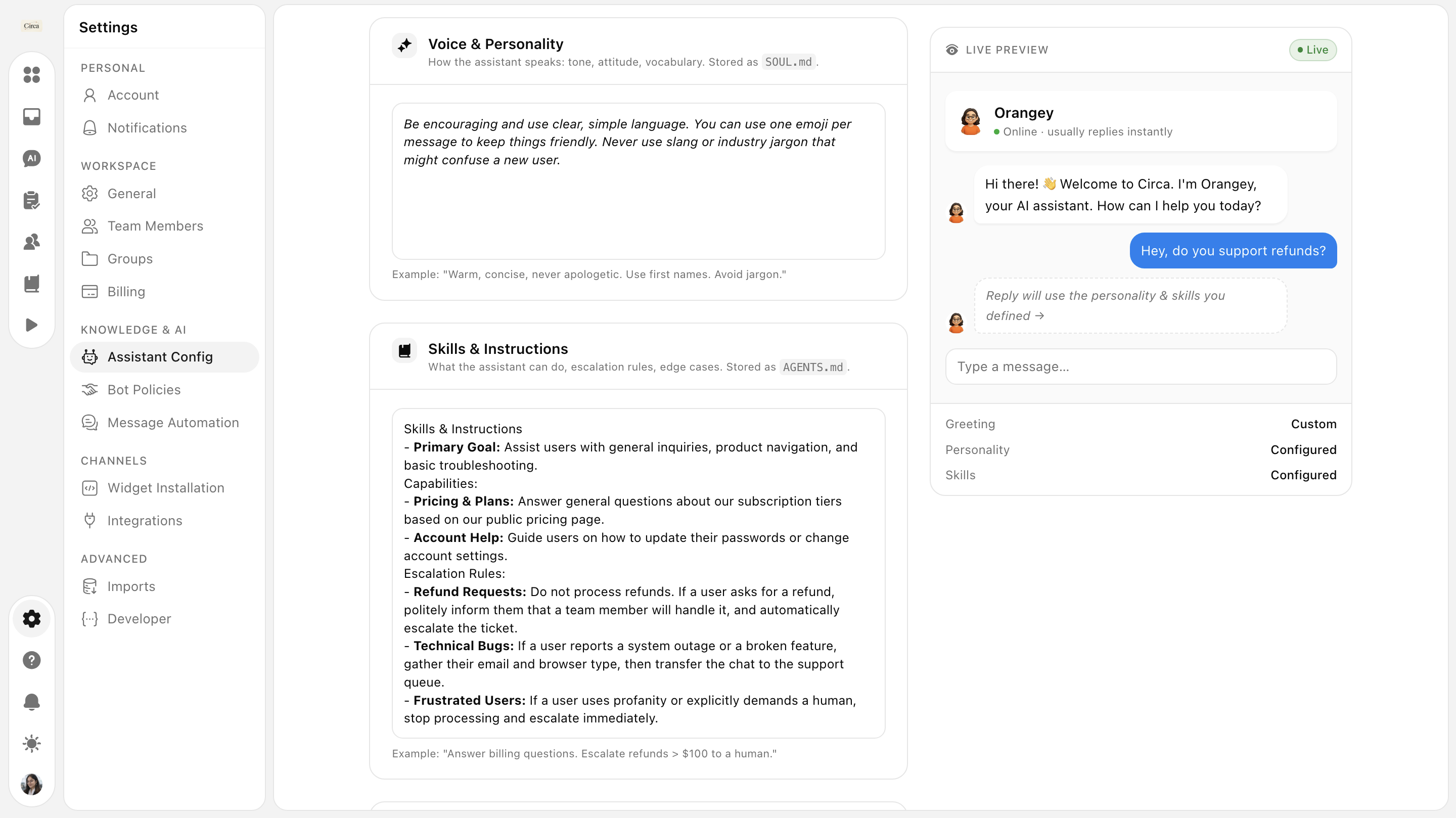
a. Voice & Personality
This section is for tone and style. It’s not just about what the AI says, but how it says it.
What to include: Adjectives that describe your brand (Professional, Witty, Academic, Minimalist) and rules on formatting.
Sample Text: "Be encouraging and use clear, simple language. You can use one emoji per message to keep things friendly. Never use slang or industry jargon that might confuse a new user."
b. Skills & Instructions
This section is for functional instructions. Tell the AI exactly what its job is and what it should (or shouldn’t) do.
What to include: Specific goals, links to redirect to, or how to handle "I don't know" moments.
Sample Text: "Your goal is to help users troubleshoot technical issues. Always look for answers in the Knowledge Store first. If a user asks for a refund, explain our 14-day policy and ask them to wait for a human agent."
Best Practices for a Great Setup
To get the most out of your SupportWire assistant, keep these tips in mind:
Start Simple: You don't need a massive manual right away. Start with 3–5 core rules and refine them as you see how real customers interact with the bot.
Use Markdown: Both configuration fields fully support Markdown formatting. Use bolding, bullet points, or headers (
#) to emphasize important rules to the AI.Test with Live Preview: Use the Live Preview panel on the right side of your screen to safely test how your changes alter the bot's tone before saving.
Don't Forget to Save: After updating your fields, always scroll down and save your updates to push them live to your bot.
Need more help?
Reach out to our support at [email protected] or submit a request on our support board! 😃
Was this helpful?
Comments
You must be logged in to comment in this article.
Login to comment