

Bot Policies are essential for automating how customer conversations are handed off and assigned within your team. By setting clear rules, you ensure that no customer is left waiting, workloads are balanced across your team, and the AI assistant steps in exactly when it is needed. These policies help maintain a high standard of support even during peak hours or when your team is offline.
Accessing Bot Policies
To configure these rules, follow these steps:
Log in to your SupportWire dashboard.
Click on Settings in the bottom left of the sidebar.
Under the Knowledge & AI section, select Bot Policies.
Understanding Policy Settings
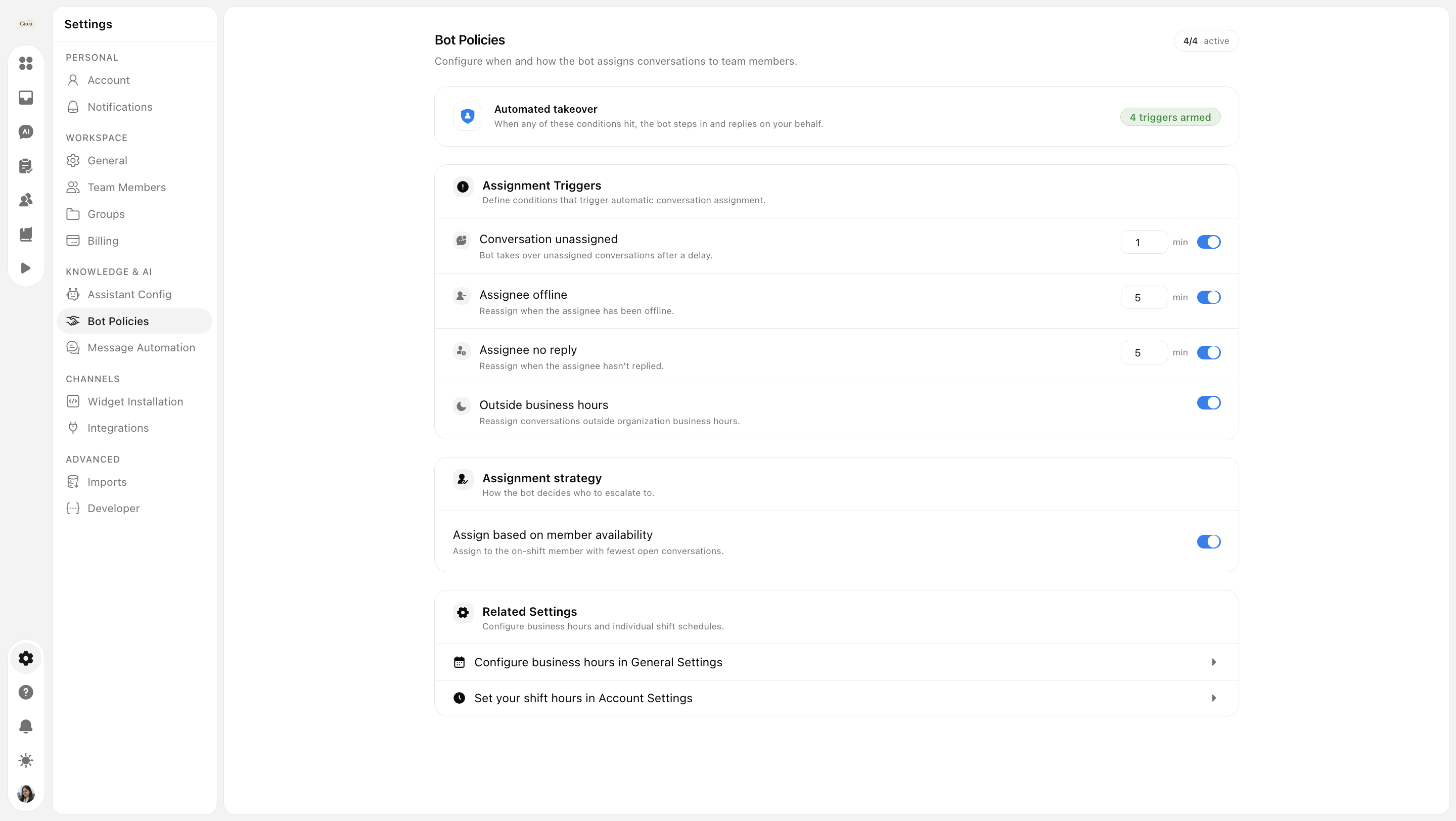
The Bot Policies page is divided into specific triggers and availability rules that dictate how the system behaves.
1. Assignment Triggers
These settings define the conditions that cause a conversation to be automatically reassigned or taken over by the bot:
Conversation unassigned: Set a delay (in minutes) for how long a new conversation can stay unassigned before the bot takes over to provide immediate assistance.
Assignee offline: If an agent is assigned to a conversation but goes offline, this trigger will automatically reassign the chat after a set duration (e.g., 5 minutes) to an active team member.
Assignee no reply: Ensure customers aren't ignored. If an assigned agent hasn't replied within a specific timeframe (e.g., 3 minutes), the conversation will be reassigned.
Outside business hours: Toggling this on ensures that conversations received outside of your organization's set business hours are automatically reassigned or handled by the bot.
2. Member Availability
Assign based on member availability: When enabled, the system automatically assigns new conversations to the team member currently online who has the fewest open conversations.
Common Use Cases
Preventing Response Delays: By using the Assignee no reply trigger, you can guarantee that a customer never waits more than a few minutes for a response, even if their original agent gets pulled away.
Managing After-Hours Support: Use the Outside business hours toggle to let your AI assistant handle inquiries overnight, then have those conversations waiting for your team in the morning.
Fair Workload Distribution: Enabling Member availability prevents a single agent from being overwhelmed while others have a light queue, keeping your team’s performance consistent.
Need more help?
Reach out to our support at [email protected] or submit a request on our support board! 😃
Was this helpful?
Comments
You must be logged in to comment in this article.
Login to comment