

Providing great support is a team effort. The Team Members settings allow you to bring your colleagues into the workspace, define their levels of access, and manage your organization's roster as it grows. By organizing your team effectively, you ensure that the right people have the tools they need to respond to customers and manage your support strategy.
To manage your team:
Click the Settings (gear icon) in the bottom-left corner of your dashboard.
Under the Workspace section in the sidebar, select Team Members.
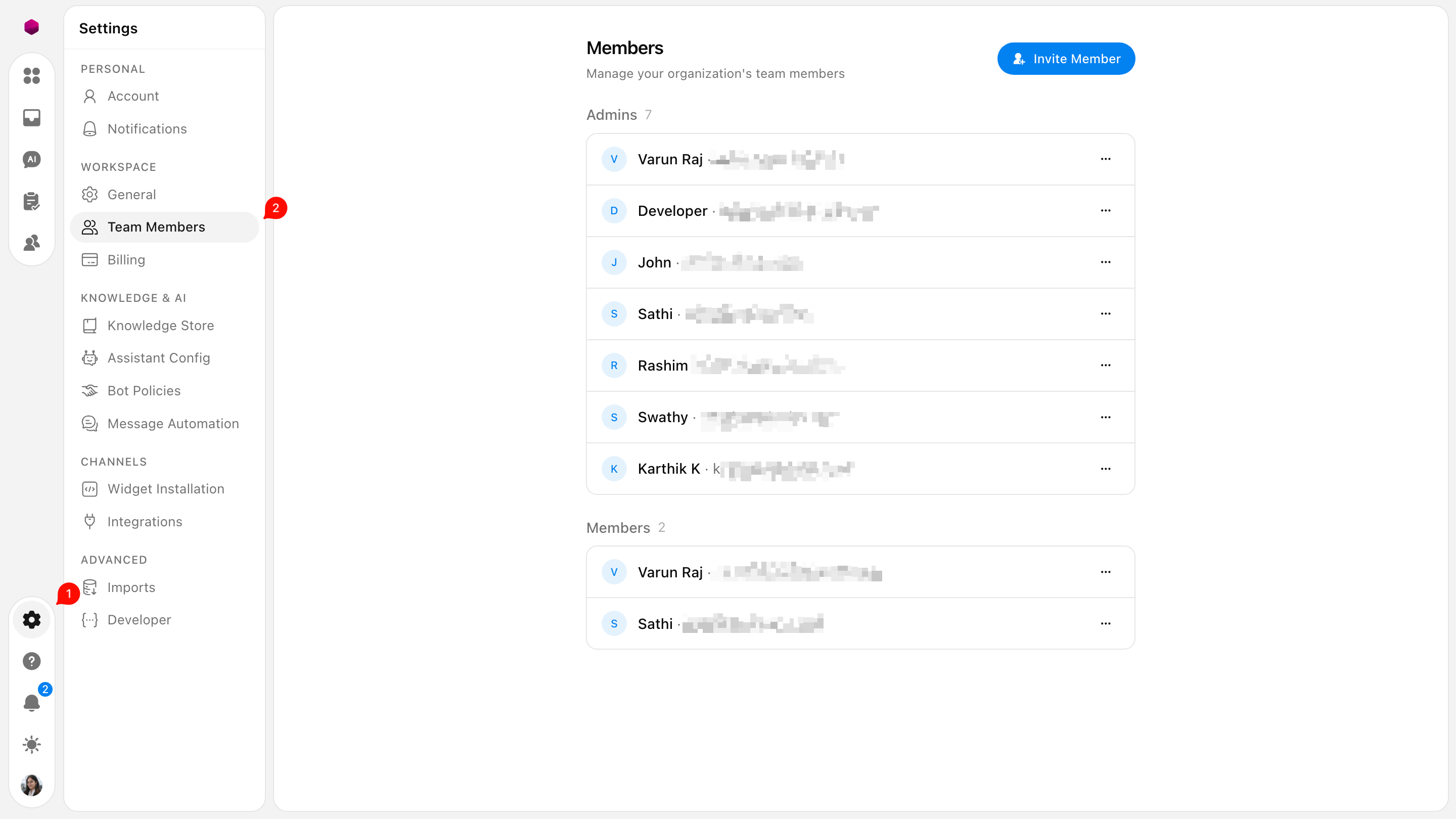
1. Inviting New Members
Getting your team onboarded is straightforward:
Click the Invite Member button at the top of the page.
Enter the email address of the colleague you wish to add.
Assign them a starting role (see roles below) and send the invitation.
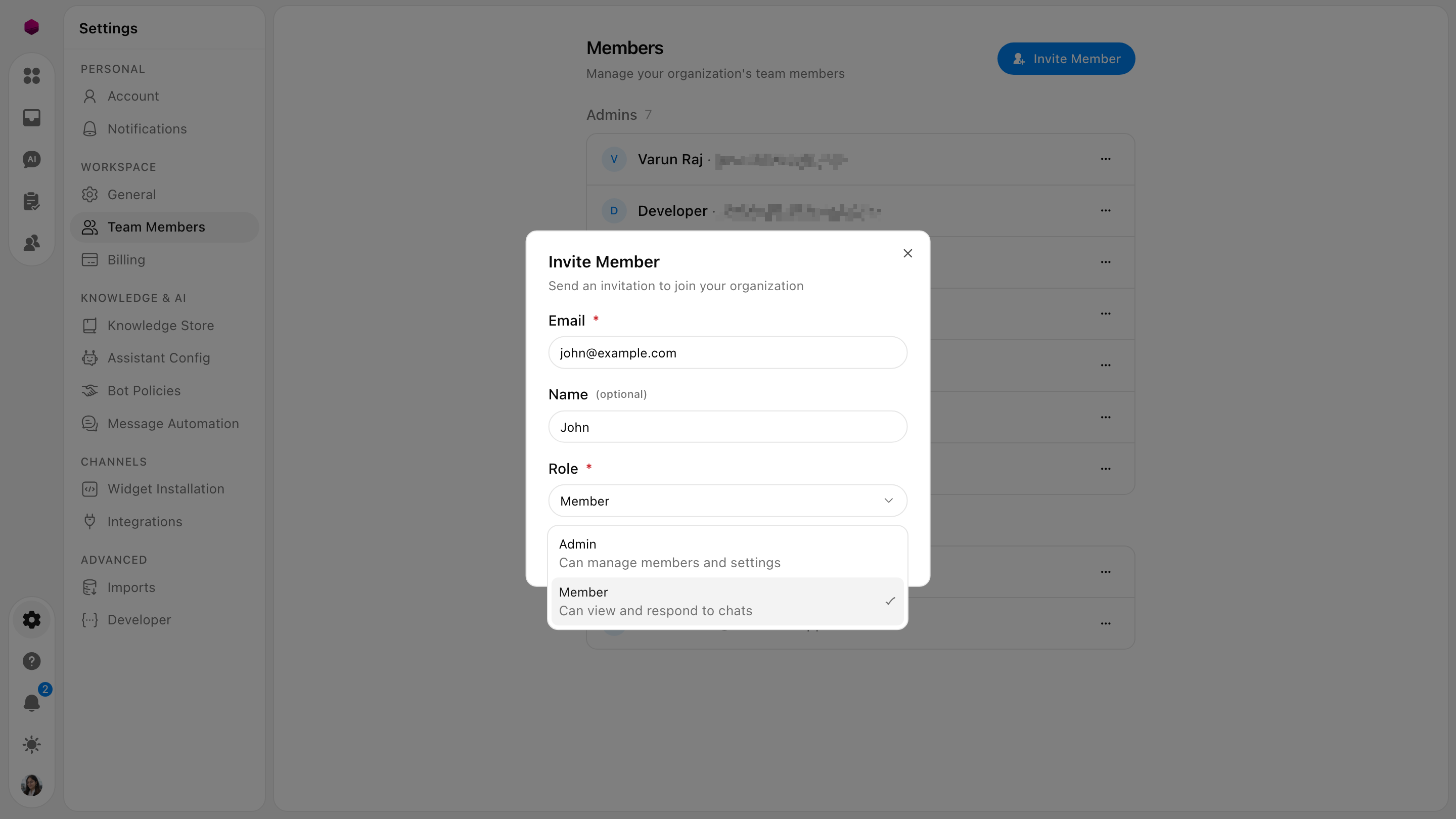
2. Understanding Roles & Permissions
SupportWire offers two primary roles to help you control access to sensitive settings:
Admin: Admins have full control over the workspace. They can manage members, update billing information, and change core configurations like Bot Policies or Knowledge Stores.
Member: Members are focused on the day-to-day. They can view and respond to customer chats but do not have access to organizational settings or member management.
3. Managing Existing Members
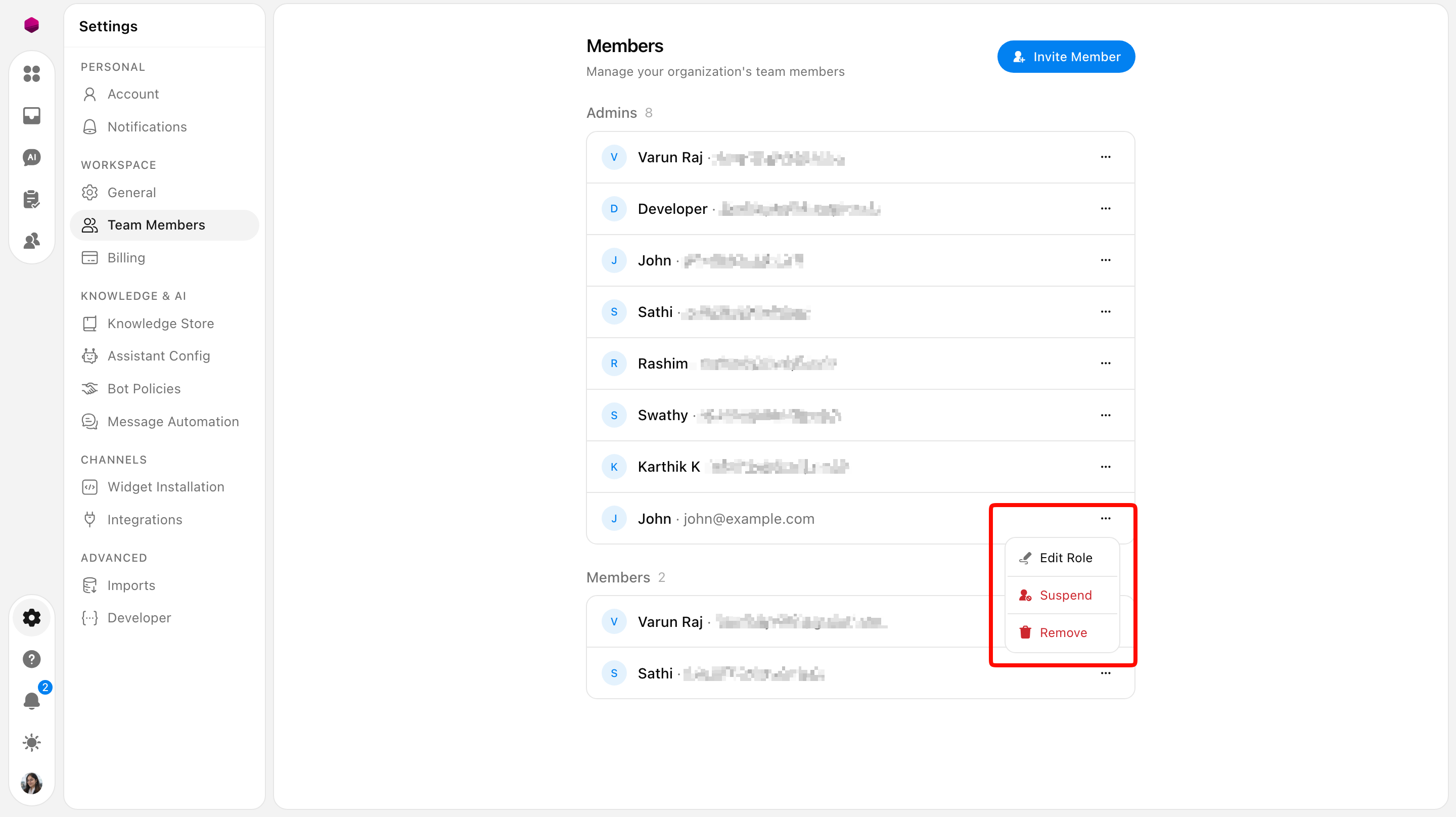
As your team changes, you may need to adjust access levels. By clicking the three dots (···) next to any name, you can access the following options:
Edit Role: Quickly promote a Member to Admin or vice versa.
Suspend: Temporarily revoke a user's access without deleting their account. This is useful for seasonal staff or temporary leaves.
Remove: Permanently delete a member from the organization. This action is immediate and will clear their access to the dashboard.
Use Cases for Effective Team Management
Securing Your Configuration: Assign the Member role to your primary support agents. This allows them to focus on helping customers while preventing accidental changes to your AI instructions or business hours.
Collaborative Setup: Assign the Admin role to technical leads or managers who need to index new Knowledge Stores or fine-tune the Assistant’s characteristics.
Streamlined Offboarding: Use the Remove option to instantly secure your data when a team member moves on to a new role outside the company.
Need more help?
Reach out to our support at [email protected] or submit a request on our support board! 😃
Was this helpful?
Comments
You must be logged in to comment in this article.
Login to comment