

Inbound Email allows you to seamlessly receive customer emails as conversations directly inside your workspace. Instead of managing a separate inbox, customers can reply to your team's emails, and those responses will land automatically within the same conversation thread, keeping all your support history in one unified place.
Accessing Inbound Email
To configure your email routing, follow these steps:
Log in to your SupportWire dashboard.
Click on the Settings gear icon in the bottom left of the sidebar.
Under the Channels section, select Inbound Email.
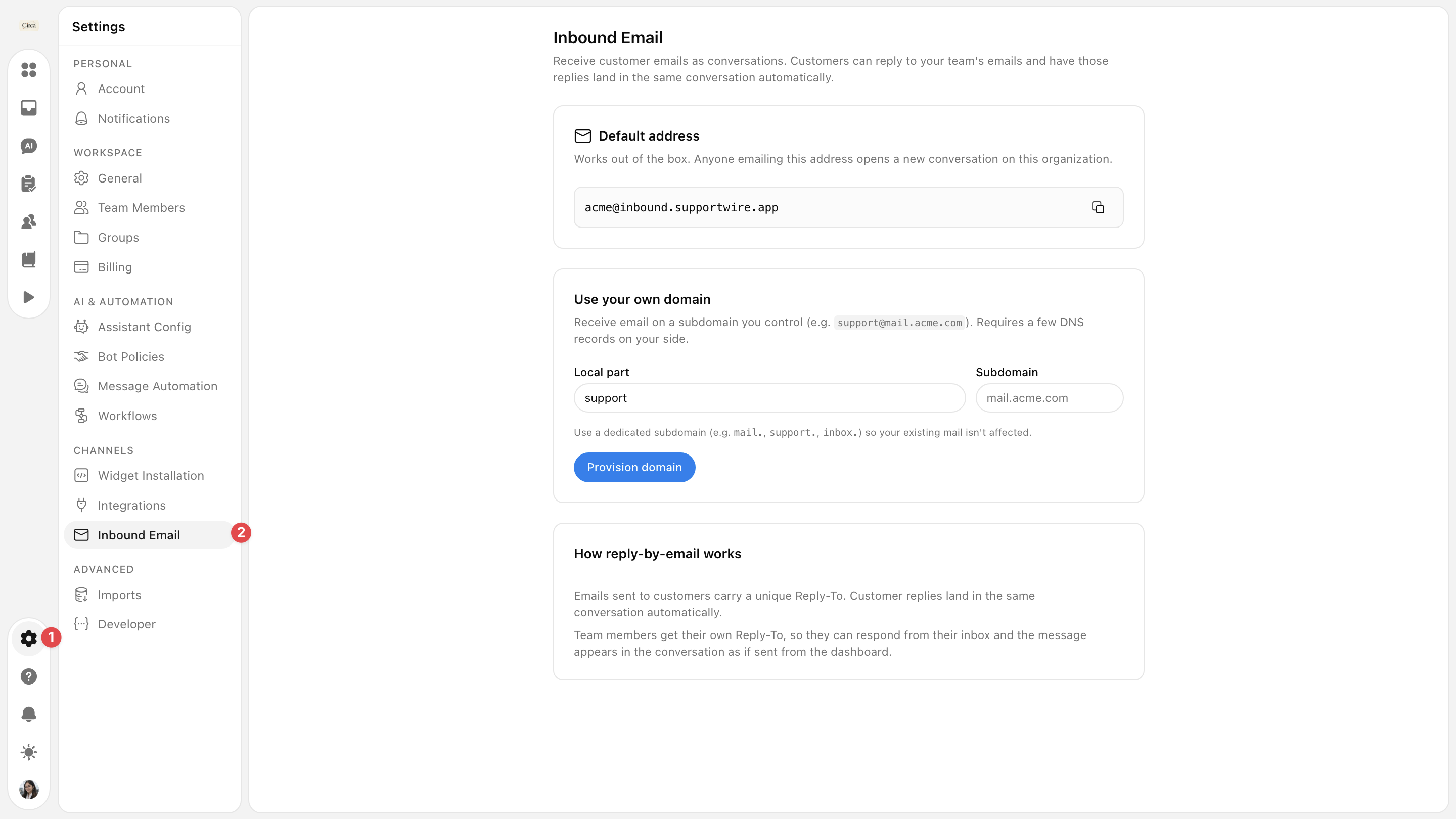
Understanding Inbound Email Settings
The Inbound Email page provides you with two ways to receive customer emails, depending on your team's needs.
1. Default Address
SupportWire provides an out-of-the-box email address tailored to your workspace (e.g., [email protected]).
How it works: Anyone emailing this specific address automatically opens a brand new conversation in your dashboard.
Best for: Getting started instantly without modifying any external domain or DNS settings.
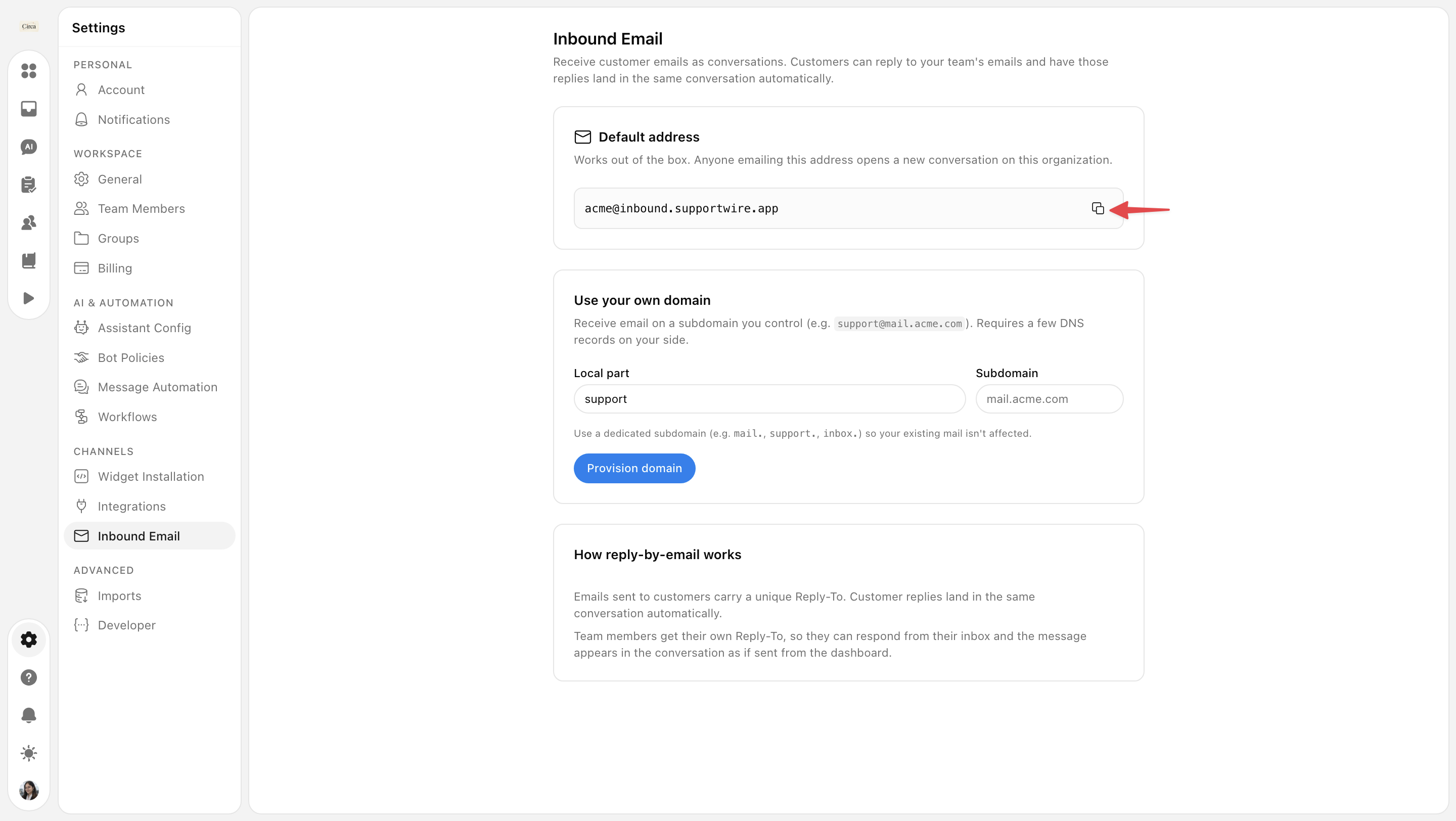
2. Use Your Own Domain
If you prefer a more professional, branded appearance, you can receive support emails on a custom subdomain you already control (e.g., [email protected]).
To set this up, configure the following fields in the modal:
Local part: Enter your desired prefix (like
supportorhelp).Subdomain: Enter the dedicated subdomain you want to route through (like
mail.acme.comorinbox.acme.com).Provision Domain: Click the Provision domain button once your details are entered.
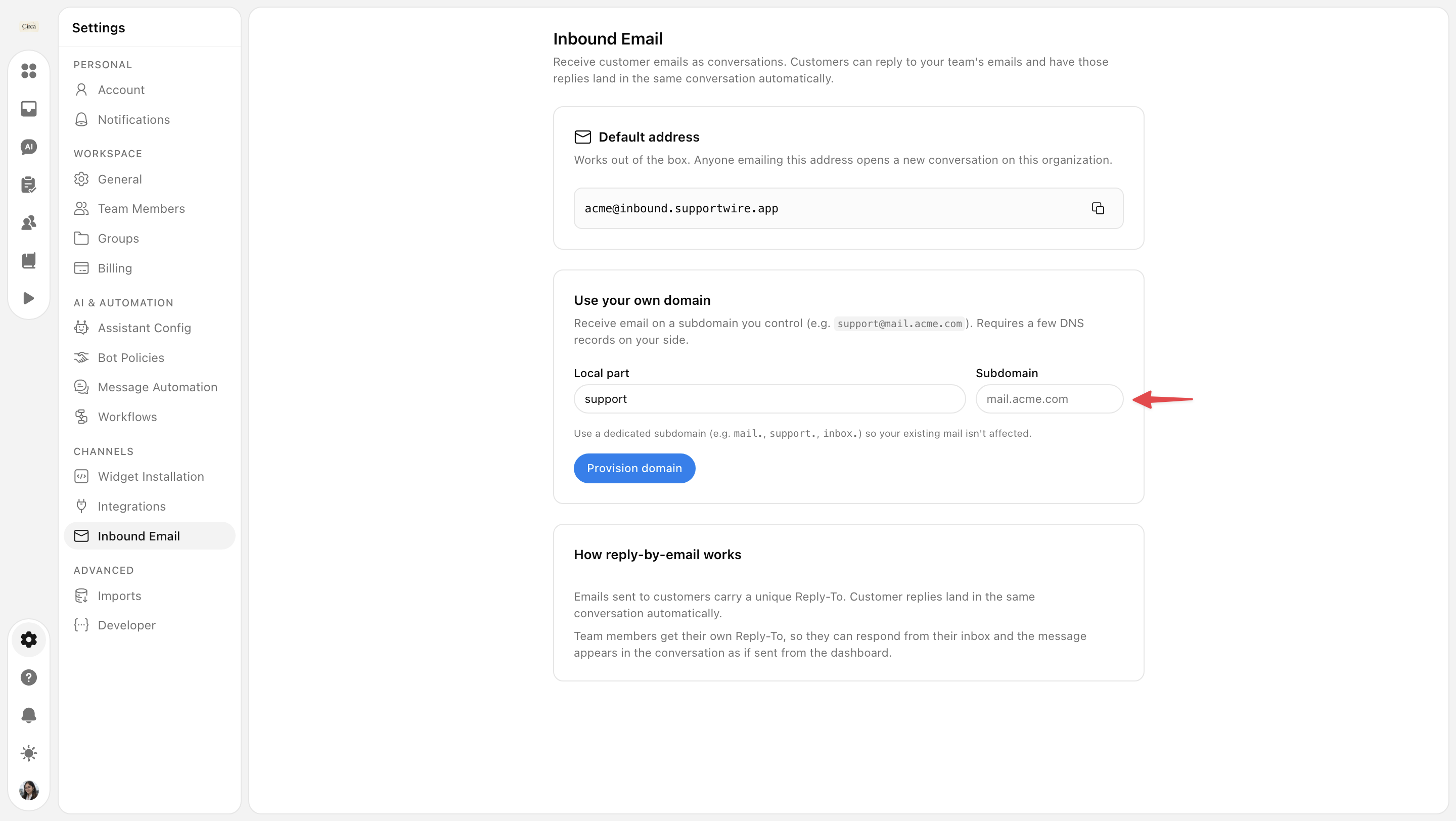
💡 Tip: We recommend using a dedicated subdomain so your company's existing day-to-day email traffic remains completely unaffected. This setup requires adding a few DNS records on your domain registrar's side.
How Reply-by-Email Works
Once configured, communication becomes effortless for both your customers and your support team:
Unique Tracking: Every email sent out to your customers carries a unique tracking code in the
Reply-Toheader. This ensures that when a customer hits reply from their personal inbox, their message maps perfectly back to the active conversation thread in SupportWire.Dashboard Syncing: Team members also receive their own unique
Reply-Toaddresses. This allows agents to respond to support notifications directly from their personal email client, and the message will automatically post to the dashboard conversation as if it were sent from inside the platform.
Need more help?
Reach out to our support at [email protected] or submit a request on our support board! 😃
Was this helpful?
Comments
You must be logged in to comment in this article.
Login to comment