

Priority helps your team see which conversations need attention first. When your inbox is busy, the most urgent issues stay at the top instead of getting lost in the queue.
The priority levels
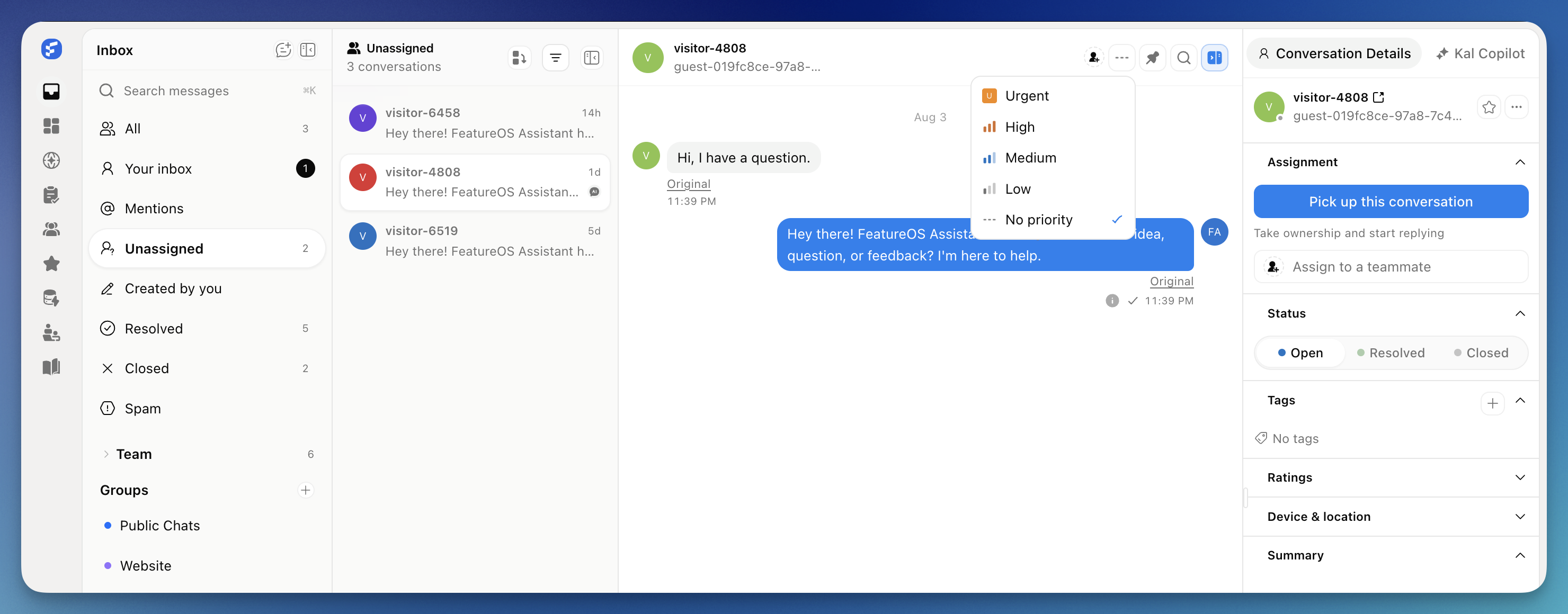
Every conversation has one of five levels:
No Priority - the default. No priority set.
Low - can wait until the queue clears.
Medium - needs attention soon, but the customer isn't blocked.
High - the customer is stuck or waiting on something important.
Urgent - a critical issue that needs someone right now.
To remove priority from a conversation, just set it back to No Priority.
Setting priority
You can set priority a few ways, and it saves instantly.
From a conversation: click the priority icon in the header and choose a level.
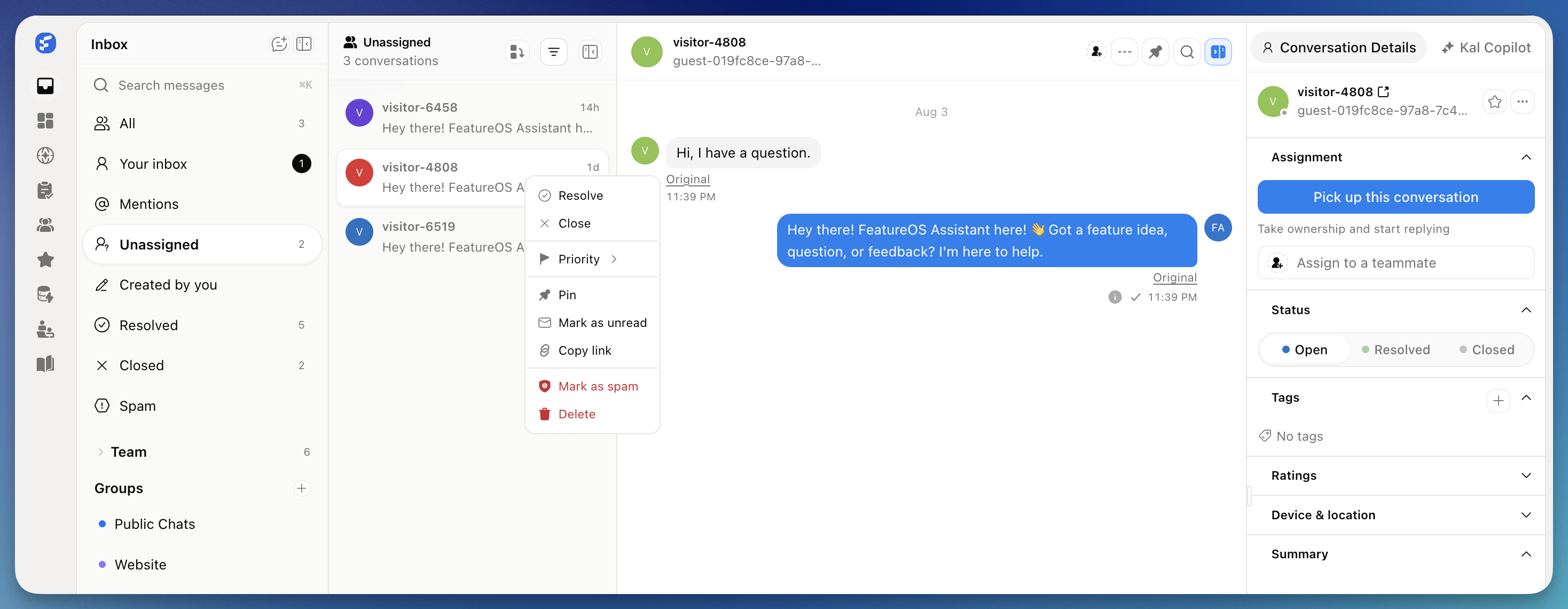
From your inbox list: open the menu on any conversation and set the level without opening it.
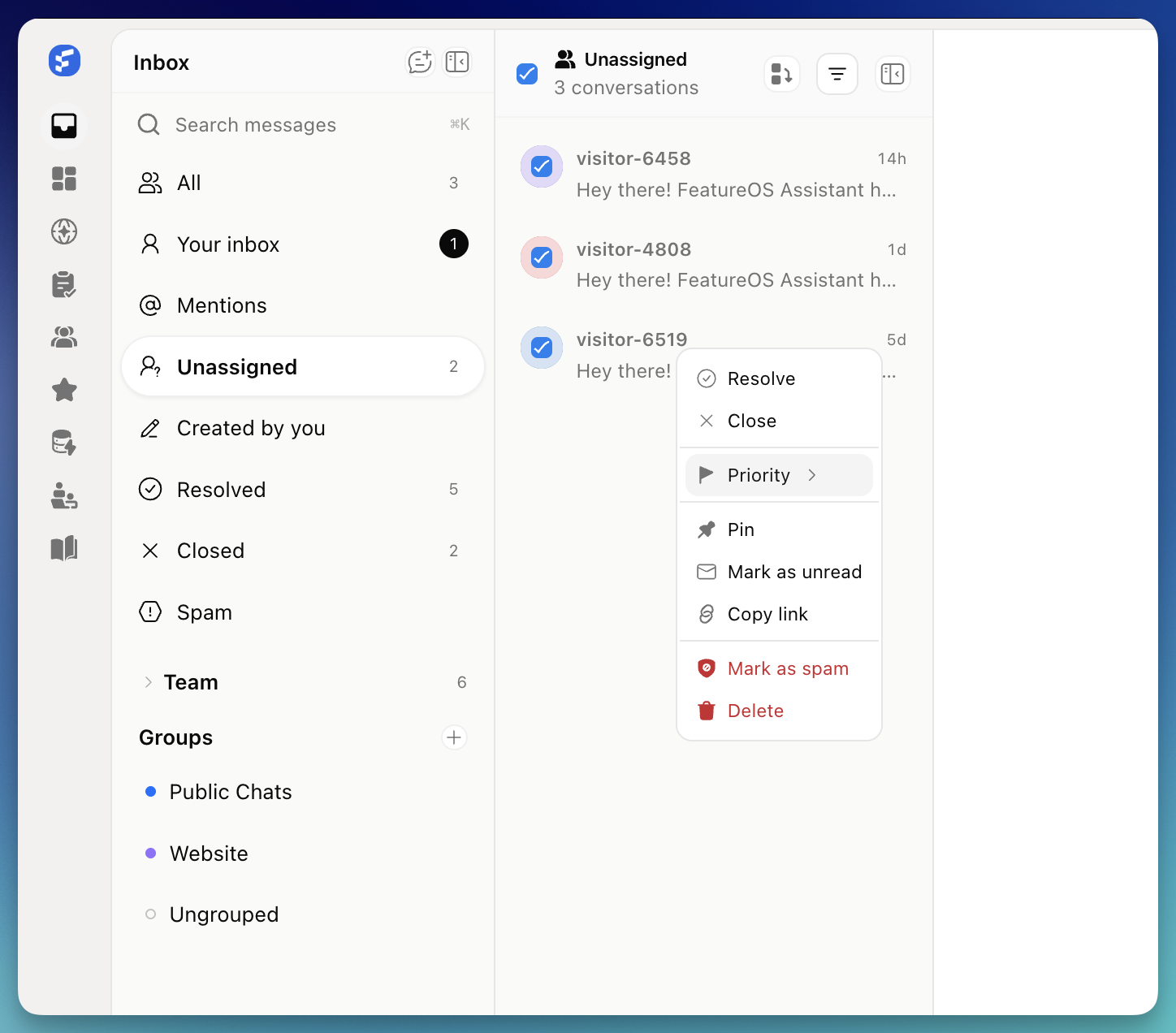
For several at once: select multiple conversations and apply the same level to all of them.
With your keyboard: press P inside a conversation to open the picker.
Finding conversations by priority
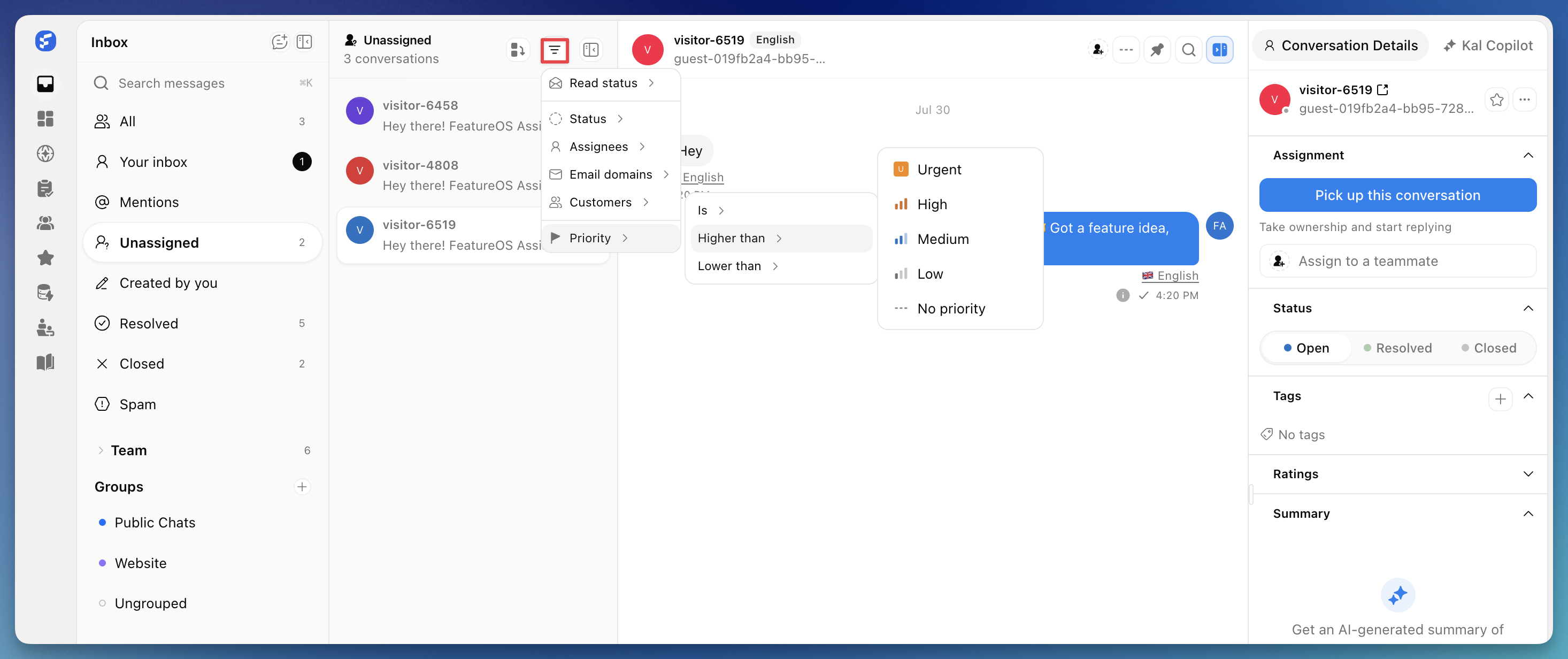
In any inbox view, you can filter by priority using three options:
Is - shows one exact level (for example, Priority is Urgent).
Higher than - shows everything above a level (Higher than Low shows Medium, High, and Urgent).
Lower than - shows everything below a level.
You can also sort a view by priority so the most urgent conversations always sit at the top. Everyone on your team sees the same order, so you can work through the queue together.
Need Help?
Email us at [email protected] or drop your question on our support board!
Was this helpful?
Comments
You must be logged in to comment in this article.
Login to comment